
Best AI Tools to Remove Silence from Video in 2026
Long pauses, awkward gaps, and unnecessary silence can make even a good video feel slow. If you record tutorials, podcasts, talking-head videos, interviews, or social media content, manually finding every silent section can take a lot of time.
That is where AI-powered silence removers can help.
I researched and tested several tools to see how easily they can remove silence from video and how useful they are for everyday editing. I also looked at related searches such as “silence remover from video,” “remove pauses from video,” “AI remove silence from video,” “automatically remove silence from video,” and “remove silence from video online free.”
In this guide, I’ll compare the tools based on their silence-removal features, editing experience, free options, export restrictions, and who each tool is actually suitable for.
Table of Contents
Quick Comparison of the Best AI Silence Remover Tools
| Tool | Silence Removal | Free Option | Watermark | Best For |
|---|---|---|---|---|
| Rendley | Yes | Yes | No watermark in my test | Easy all-in-one editing |
| Microsoft Clipchamp | Yes | Yes | Free export available | Beginners and desktop users |
| Descript | Yes | Limited | Depends on plan | Podcasts and talking-head videos |
| VEED | Yes | Limited | Depends on plan | Browser-based editing |
| TimeBolt | Yes | Yes | Watermark on free exports | Advanced silence removal |
What Is a Silence Remover?
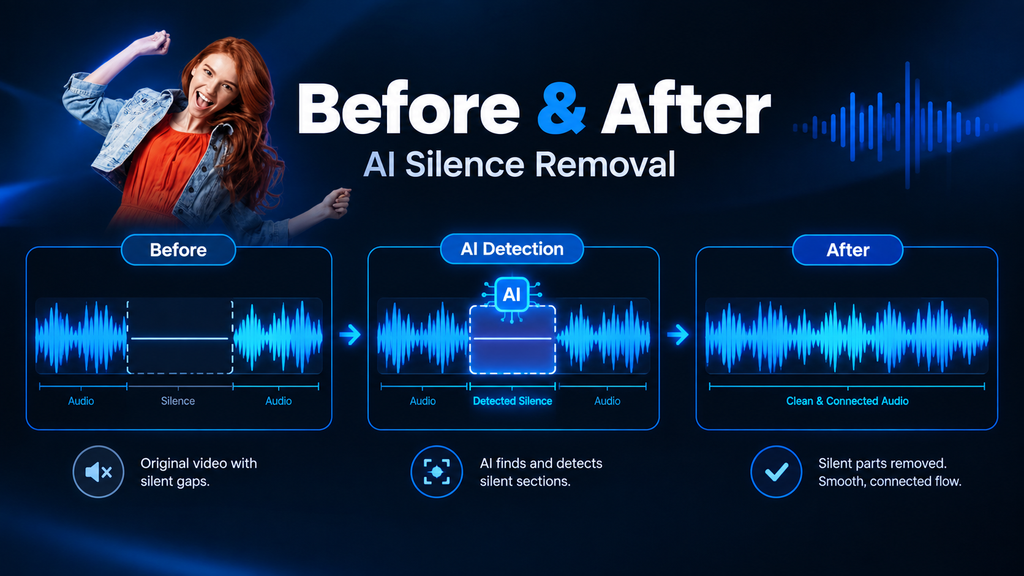
A silence remover is a video or audio editing tool that detects unwanted silent sections, long pauses, or gaps in a recording and removes them.
For example, imagine you say:
“Today I’m going to show you how this tool works…”
Then there is a long pause before you continue.
Instead of manually finding that pause on the timeline, an AI silence remover can detect the quiet section and cut it automatically.
This is especially useful for:
- YouTube videos
- Video tutorials
- Podcasts
- Interviews
- Online courses
- Talking-head videos
- Screen recordings
- Voiceovers
- Social media videos
Not every tool works in exactly the same way. Some remove only complete silence, while others can detect longer word gaps or pauses.
How I Chose and Tested These Tools
I didn’t want this list to be based only on what sounds good on a tool’s homepage.
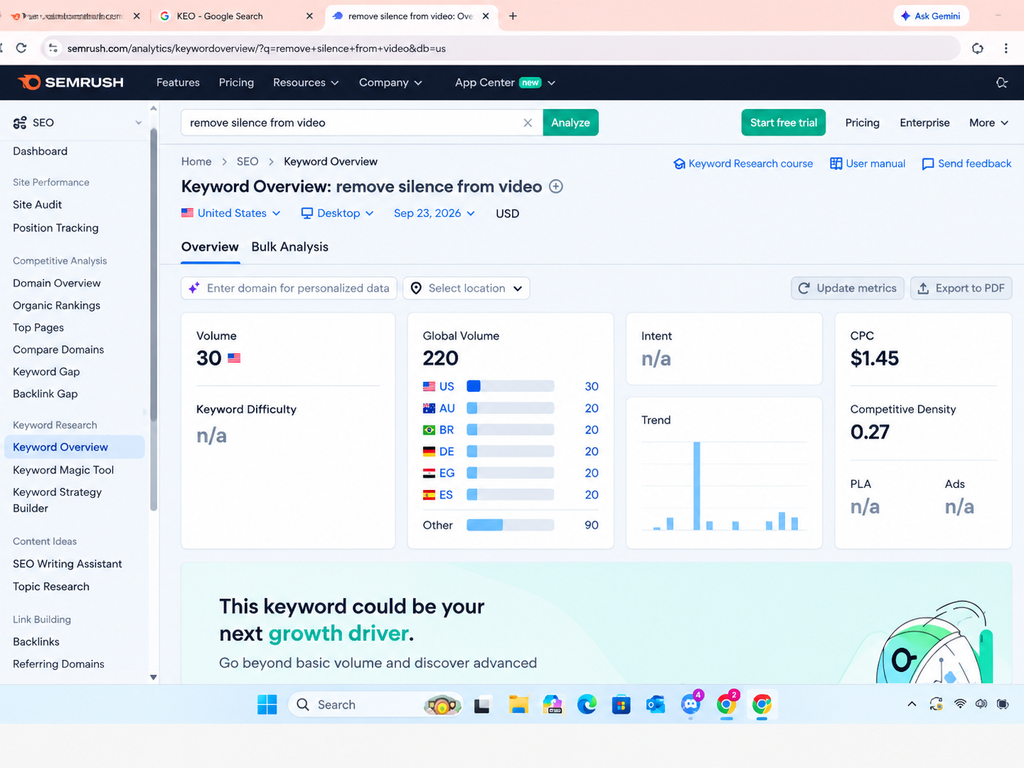
I researched the main keyword “remove silence from video” using Semrush and also used a keyword research tool to find related searches and variations.
Some of the keyword variations I looked at included:
- remove silence from video
- silence remover from video
- remove pauses from video
- AI remove silence from video
- AI silence remover from video
- automatically remove silence from video
- remove silence from video free
- remove silence from video online free
- remove silence from video automatically
- remove silent parts from video
- remove dead air from video
- video silence remover
- how to remove silence from a video automatically
The main keyword showed a global volume of around 220 in my Semrush research, while several related variations also had measurable search demand.
I then looked at the actual tools and focused on whether silence removal was available, how easy the workflow was, and whether the free version was useful.
I also tested some of the tools myself where possible and used official documentation to verify features I could not fully test.
1. Rendley
Rendley stood out during my testing because it felt more like a complete video editor rather than a tool that only performs one job.
It includes a Silence Remover feature for removing silent sections from video and audio. Rendley also has other editing features such as music and transitions, which makes the overall editing experience more useful.
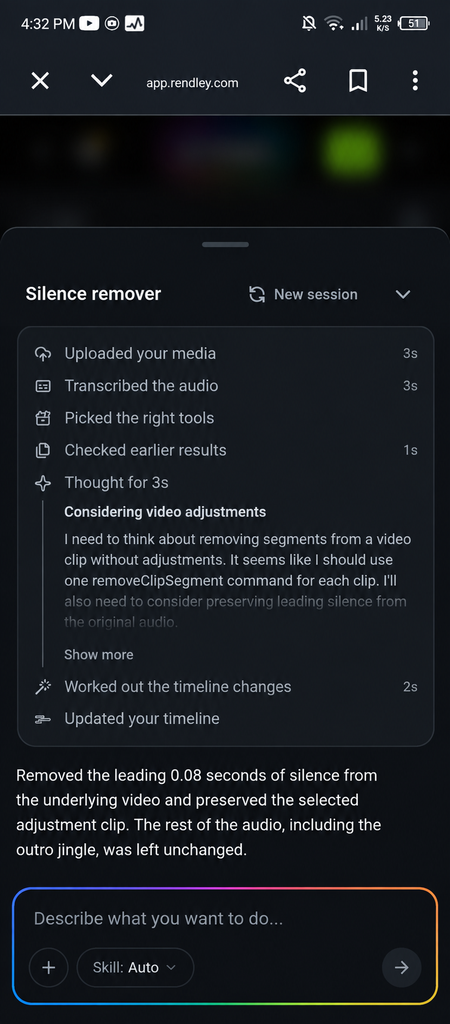
During my test, I uploaded my media and used the silence-removal workflow. Rendley transcribed the audio and made a timeline adjustment to remove a detected silent section.
In my specific test, it detected and removed a short 0.08-second section of silence at the beginning while leaving the rest of the audio, including the outro music, unchanged.
I also exported the video to check for a watermark. The exported video I tested did not have a watermark.
Pros of Rendle
- Silence removal is available
- Smooth and beginner-friendly editing experience
- Music and transitions are included
- Useful for more than just removing silence
- My free export test had no watermark
- Good option if you want editing and silence removal in one place
Cons of Rendley
- My silence-removal test involved a very short detected silence
- Some advanced features may require a paid plan
- Exact free-plan limits can change
Best For
Rendley is a good option for beginners and creators who want to remove silence while also having music, transitions, and other editing tools available in the same editor.
2. Microsoft Clipchamp
Microsoft Clipchamp is another useful option if your main goal is to remove long pauses without complicated editing.
Its AI-powered silence-removal feature can automatically find pauses and silences longer than three seconds. You can review the detected pauses and remove them individually or remove them together.
This makes Clipchamp particularly useful for longer recordings where manually searching for every pause would be time-consuming.
Clipchamp is mainly useful for desktop and browser-based editing. Microsoft also offers a mobile app, but the desktop/browser workflow is more relevant if automatic silence removal is your main goal.
Pros of Microsoft Clipchamp
- AI-powered silence removal
- Free silence-removal feature
- Detects pauses longer than 3 seconds
- You can review pauses before removing them
- Beginner-friendly editor
- Useful for tutorials, interviews, presentations, and podcasts
- Includes other basic video-editing features
Microsoft also says the silence-removal feature is free for Clipchamp users.
Cons of Microsoft Clipchamp
- More suitable for desktop/browser editing
- It does not remove every tiny pause automatically
- The feature focuses on longer silences
- Mobile-first editors may prefer another tool
Best For
Clipchamp is a practical option for beginners who want a free way to automatically remove longer pauses from recordings.
3. Descript
Descript takes a different approach to video editing.
Instead of working only with a traditional timeline, Descript transcribes your recording and lets you edit the video through the transcript.
Its automatic editing tools can detect unwanted gaps and pauses, and you can adjust how much silence you want to keep. Descript also provides tools for removing filler words.
This makes it particularly interesting for podcasts, interviews, tutorials, and talking-head videos where the spoken content is the most important part.
The free experience is limited compared with a fully paid workflow, so I would not choose Descript specifically if your main requirement is a completely free silence remover.
Pros of Descript
- Powerful transcript-based editing
- Automatic silence detection
- Adjustable silence and word-gap settings
- Useful filler-word removal
- Good for spoken-content creators
- Useful for podcasts and interviews
Cons of Descript
- Free plan is limited
- Some features require a paid plan
- Can feel more advanced than a basic editor
- Not the simplest option if you only want to remove silence
Best For
Descript is best suited to podcasters, interview creators, and people who regularly edit talking-head or speech-heavy videos.
4. VEED
VEED is a browser-based video and audio editor with a dedicated Remove Silences feature.
According to VEED’s documentation, the tool can remove complete silent sections and close the resulting gaps so the video plays continuously.
However, there is an important limitation. If a section contains sound such as speech, breathing, or background noise, VEED’s silence-removal tool may not consider it complete silence.
VEED also has a wider collection of video and audio editing tools, including trimming, splitting, rearranging clips, subtitles, background-noise tools, music, and sound effects.
The free plan currently allows a one-time use of the Remove Silences feature, while ongoing access is available on paid plans.
Pros of VEED
- Works directly in the browser
- Dedicated silence-removal feature
- Simple online editing workflow
- Includes many other video-editing tools
- Useful for creators who don’t want to install software
- Music and sound effects are available
Cons of VEED
- Free silence-removal use is limited
- It focuses on complete silence
- Background noise or breathing may prevent a section from being detected as silence
- Some advanced features require a paid plan
Best For
VEED is a good option if you want an online video editor with silence removal plus other editing tools in the same browser-based workspace.
5. TimeBolt
TimeBolt is designed more specifically around speeding up the editing process by detecting and removing unwanted silence and dead air.
Compared with beginner-focused browser editors, it is more useful for creators who regularly record longer videos and want more control over automatic cuts.
TimeBolt can detect silent sections and help remove unwanted dead air without requiring you to manually search through the entire recording.
It also provides more control for users who want to adjust how silence is detected.
pros of TimeBolt
- Designed specifically around removing dead air
- Useful for longer recordings
- More control for experienced editors
- Can save time compared with manual cutting
- Suitable for podcasts and talking-head recordings
Cons of TimeBolt
- Less beginner-friendly than simple browser editors
- Free use has limitations
- Free exports can include a watermark
- Better suited to desktop workflows
- May be unnecessary if you only edit short videos
Best For
TimeBolt is better suited to creators who regularly work with longer recordings and want more control over automatic silence removal.
AI Silence Remover vs Manual Editing
Manual editing still works, but it can become frustrating when a recording contains dozens of pauses.
With manual editing, you normally have to:
- Watch the recording
- Find a silent section
- Stop at the right point
- Split the clip
- Delete the unwanted section
- Repeat the process
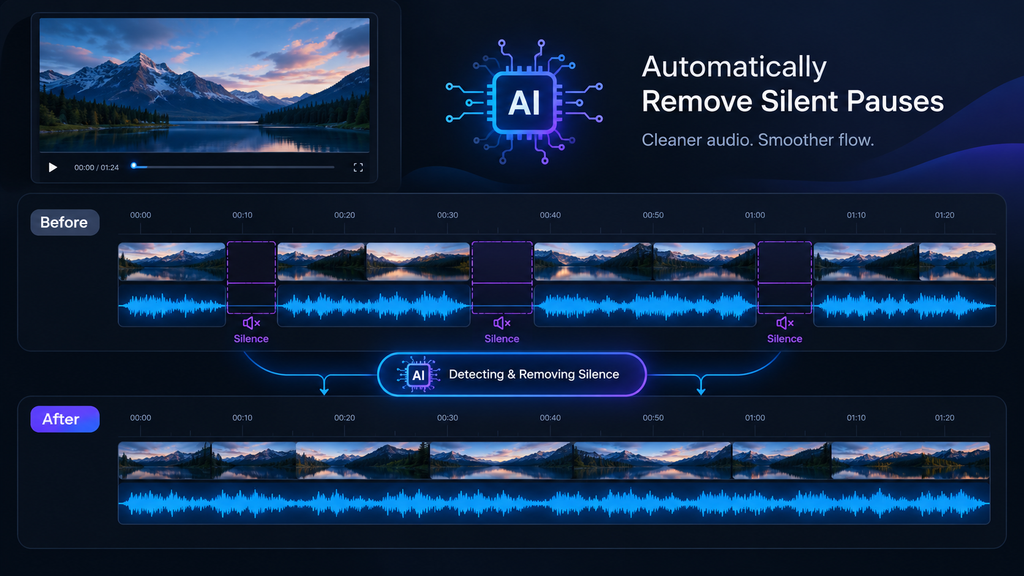
An AI silence remover can reduce much of this work by detecting quiet sections automatically.
That doesn’t mean you should always remove every pause.
A short pause can sometimes make speech sound natural. Removing every tiny gap can make someone sound rushed or unnatural.
That is why I prefer tools that let you preview or adjust the detected pauses before exporting.
Are AI Silence Removers Actually Worth Using?
For long recordings, they can save a lot of editing time.
The biggest advantage isn’t simply making a video shorter. It’s reducing the amount of repetitive manual work involved in finding every unwanted pause.
For example, if you record a 20-minute tutorial and have several long gaps throughout the recording, checking every section manually can be tedious.
An automatic silence remover can give you a much faster starting point, after which you can review the cuts and make any necessary adjustments.

Free vs Paid AI Silence Removers
If you only occasionally need to remove silence, a free tool may be enough.
For regular editing, paid plans can become useful because they may provide higher export limits, additional AI features, longer projects, or fewer restrictions.
From my testing, Rendley was particularly interesting because my export had no watermark. Clipchamp also provides free silence removal.
Descript and VEED are more feature-rich, but their free options have limitations. TimeBolt also offers free use, but free exports can include a watermark.
So instead of looking only for a tool that says “free,” check what the free version actually allows you to use and export.
Pros and Cons of Using AI to Remove Silence
Pros
- Saves editing time
- Finds long pauses automatically
- Makes long recordings easier to clean up
- Useful for podcasts and tutorials
- Reduces repetitive timeline editing
- Can make videos feel more concise
Cons
- AI may remove a pause you wanted to keep
- Very short pauses may not always be detected
- Breathing or background noise can affect detection
- Some tools limit free usage
- Free exports may have restrictions or watermarks
- You should still review the final video before publishing
My Experience Testing These Tools
I wanted this comparison to be based on more than just feature lists.
While testing the tools I could access directly, I noticed that the overall editing experience matters almost as much as the silence-removal feature itself.
Rendley felt smooth to edit in, and I liked that it also had music and transitions. I tested its silence-removal workflow and then exported the result to check for a watermark. The export I tested was watermark-free.
For the other tools, I also checked their documented features and workflows so I could separate what I personally tested from what the companies say their tools can do.
Clipchamp focuses on automatically finding longer pauses. Its official documentation says it looks for silences longer than three seconds, which makes it more suitable for longer talking videos than extremely small gaps.
Descript stands out for its transcript-based approach. Instead of treating the video as only a timeline, it makes spoken content easier to work with through the transcript.
VEED is useful if you prefer browser-based editing, although its silence-removal feature has a more specific definition of silence: complete silence rather than sections containing breathing or background noise.
TimeBolt focuses more directly on detecting and removing dead air, making it more relevant for creators who regularly edit longer recordings.
Which Types of Videos Benefit Most From Silence Removal?
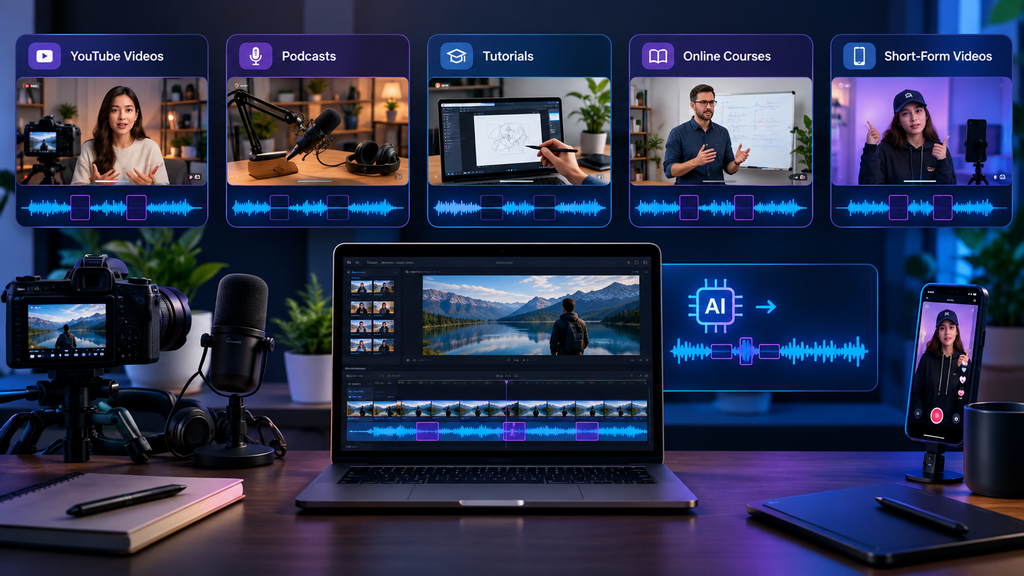
AI silence removal is especially useful for:
YouTube Videos
Long talking sections can be tightened without manually searching through the entire recording.
Podcasts
Podcasts often contain pauses, gaps, and moments where the speaker is thinking. Silence removal can make the final version more concise.
Tutorials
Removing unnecessary gaps can make tutorials easier to follow without changing the actual information.
Online Courses
Long lessons can benefit from removing unnecessary dead air while keeping the important explanations.
Social Media Videos
Short-form content has limited time, so removing unnecessary pauses can help keep the pacing tighter.
Frequently Asked Questions
How do I remove silence from a video automatically?
Upload your video to an AI video editor that supports silence removal, let it analyze the audio, review the detected pauses, and then remove the sections you don’t need. Clipchamp, for example, can automatically detect pauses longer than three seconds.
What is the best way to remove silence from video?
The best method depends on your editing needs. Browser tools are convenient for quick editing, while desktop tools can offer more control for longer or more complex recordings.
Can AI remove silence from a video?
Yes. AI-powered editors can analyze the audio and identify silent sections or longer pauses. Some tools can then remove those sections automatically.
Can I remove silence from a video online for free?
Yes. Some browser-based editors offer free silence-removal features, although the amount of free usage can vary. Clipchamp provides free silence removal, while VEED currently limits its free plan to a one-time use of the Remove Silences feature.
Can AI remove pauses from a video?
Yes. Many AI editing tools can detect pauses and remove them. The exact detection rules differ between tools, so it is a good idea to preview the result before exporting.
Does removing silence make a video shorter?
Yes. When unwanted silent sections are removed, the total video duration becomes shorter.
Can removing too much silence make a video sound unnatural?
Yes. If every tiny pause is removed, speech can become rushed or unnatural. A good silence-removal workflow should allow you to review the cuts before publishing.
Is silence removal the same as filler-word removal?
No. Silence removal targets quiet gaps and pauses, while filler-word removal targets spoken words such as “um,” “uh,” or similar unnecessary words. Some tools provide both features.
Final Thoughts
AI silence removers are useful time-saving tools for creators who work with talking videos, podcasts, tutorials, interviews, and long recordings.
After researching the keyword “remove silence from video” and testing the tools I could access directly, I found that each tool approaches silence removal a little differently.
Rendley is interesting if you want smooth editing with music, transitions, and silence removal in one place. Clipchamp is a practical option if you want free AI-powered silence removal for longer pauses. Descript is more suitable for transcript-based editing and spoken content, while VEED is convenient if you prefer working directly in your browser. TimeBolt is more focused on removing dead air from longer recordings.
The important thing is not to blindly remove every pause. Use automatic tools to handle the repetitive work, then quickly review the result before exporting.
That gives you the speed of automatic editing without losing control over how your final video sounds.
Expand Video Background AI Free: How to Do It in 2026https://visiohiveaitools.com/expand-video-background-ai-free/
