
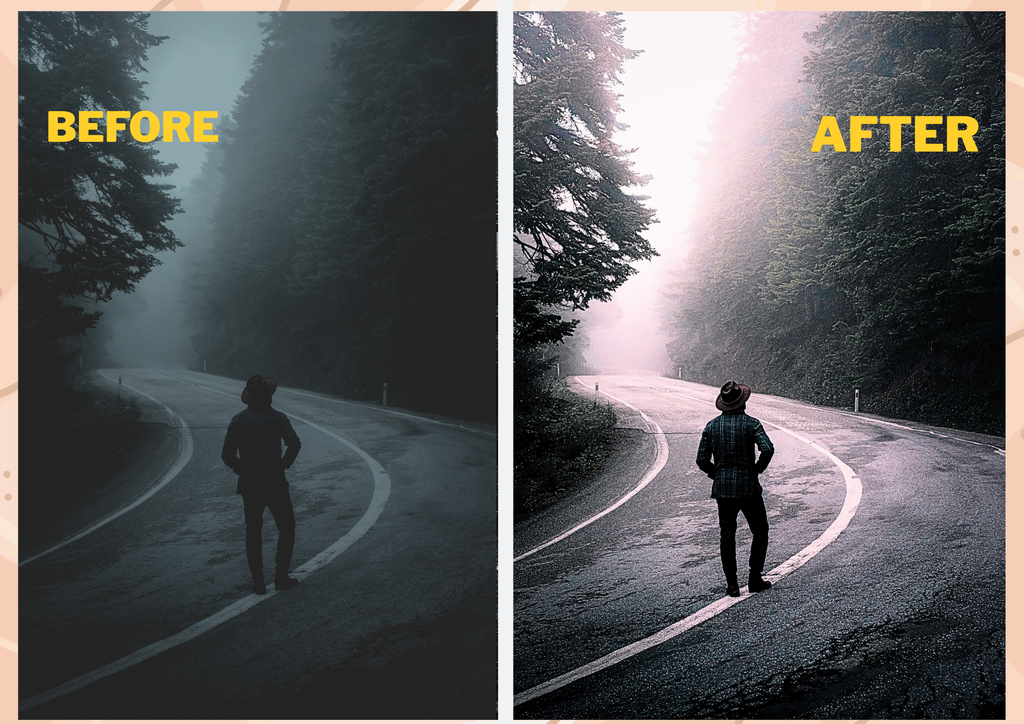
Best Video Quality Enhancers in 2026: AI Tools to Improve Video Quality
A blurry or low-resolution video can make good content look less professional. Whether you’re creating YouTube videos, Shorts, Reels, product videos, or old-video restorations, a video quality enhancer can help improve clarity, sharpness, resolution, and overall appearance.
AI-powered enhancement has made this process much easier. Instead of adjusting every frame manually, modern tools can analyze footage and automatically work on issues such as blur, noise, low resolution, and missing detail.
But choosing the right tool isn’t always easy. Some are designed mainly for mobile creators, while others focus on online upscaling or more advanced AI restoration.
In this guide, we’ll compare several popular options and explain what each one is best suited for, what to look for before choosing an enhancer, and whether increasing a video to 4K actually improves its quality.
H2: Best Video Quality Enhancers at a Glance
Tool | Best For | Main Strength | Platform
Wink | Mobile creators | AI enhancement and upscaling | Mobile, Web, Desktop
Vmake | Online enhancement | AI upscaling and detail restoration | Web
Cutout.Pro | AI media workflows | Video enhancement and upscaling | Web
Picsart | Social-media creators | Enhancement + creative editing | Mobile/Web
Features and free-plan limits can change, so check the current plan before starting a larger project.
Table of Contents
What Is a Video Quality Enhancer?
A video quality enhancer is a tool that processes existing footage to improve its visual appearance.
Depending on the software, enhancement can include:
- Increasing resolution
- Improving sharpness
- Reducing noise
- Removing some compression artifacts
- Improving lighting and colors
- Restoring certain details
- Making faces clearer
- Upscaling low-resolution footage
AI-based tools go a step further by analyzing individual frames and using trained models to estimate and reconstruct details.
However, there is an important limitation: AI cannot perfectly recover information that was never captured in the original footage.
That’s why the quality of your starting video still matters.
The Best AI Video Enhancers in 2026
1. Wink Best for Mobile Creators
Wink AI Video Enhancer is particularly interesting for creators who work primarily from a phone.
Its official enhancer supports options including HD 1080p and UHD 4K, along with scenario-specific enhancement modes. Wink says its system can also work on noise, blur, color, brightness, and video clarity.
Best For
- Mobile creators
- Short form videos
- Portrait footage
- Blurry clips
- Quick AI enhancement
Pros
- Beginner friendly workflow
- Supports mobile and web workflows
- Offers 1080p and 4K enhancement options
- Includes different enhancement scenarios
- Can process multiple videos in batches
- Useful for creators who don’t want complicated editing software
Cons
- Results depend heavily on the original footage
- Some features and processing options can depend on the plan
- Extremely blurry footage cannot be perfectly restored
Why Consider Wink?
If you’re a mobile creator looking for an easy AI video enhancer, Wink is one of the more straightforward choices. Its workflow is built around uploading footage, selecting an enhancement mode, previewing the result, and exporting it.
Vmake Best for Online Video Enhancement
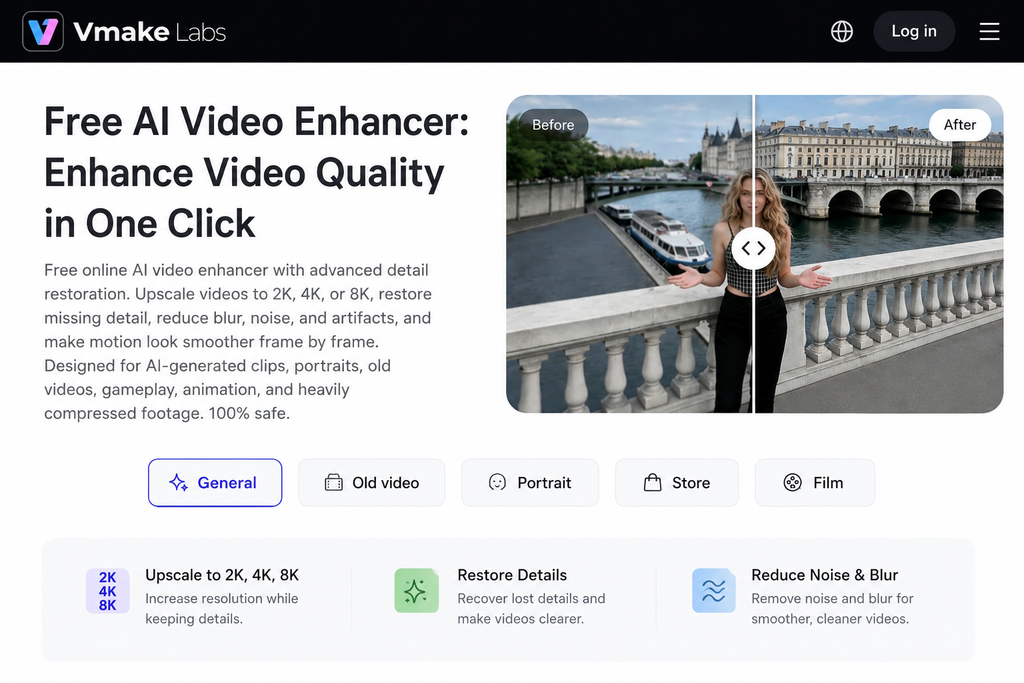
Vmake AI Video Enhancer is a browser-based option for creators who don’t want to install traditional editing software.
Vmake currently advertises AI enhancement with support for higher-resolution outputs including 2K, 4K, and 8K, along with models designed for different types of footage such as portraits, products, low-light videos, gaming, and animation.
Best For
- Browser based editing
- Low-resolution footage
- Product videos
- Portrait videos
- Repurposed content
Pros
- Works online
- No traditional editing timeline required for basic enhancement
- Supports multiple video formats
- Offers different enhancement models
- Provides higher-resolution upscaling options
Cons
- Some advanced usage may depend on the current plan
- AI reconstruction can sometimes produce different results depending on the footage
- Higher resolution doesn’t automatically mean better-looking footage
Why Consider Vmake?
Vmake is worth considering if your priority is online video enhancement and you want AI to handle much of the technical work automatically.
Cutout.Pro Best for AI Upscaling Workflows
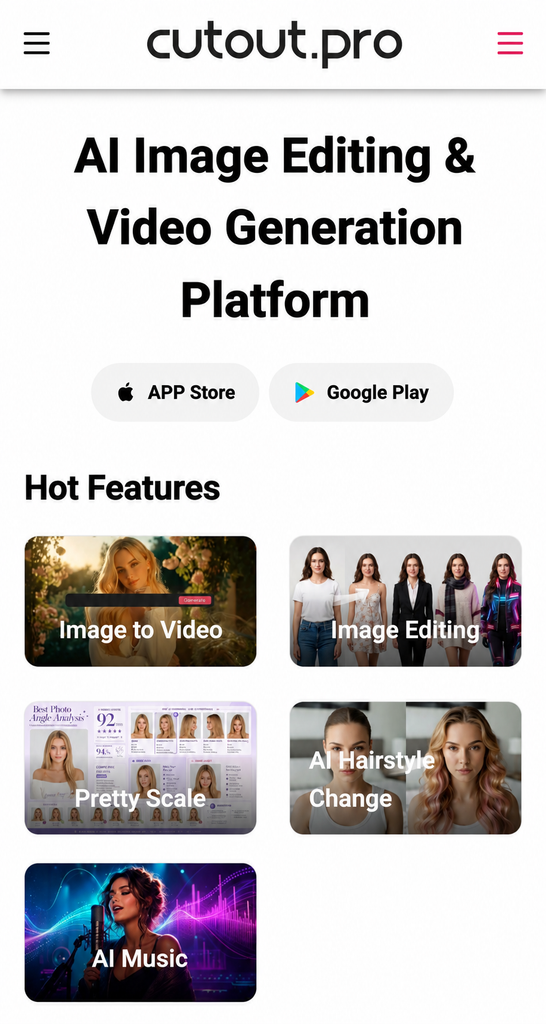
Cutout.Pro is an AI-powered creative platform that includes video-related enhancement and upscaling tools.
Best For
- Online AI editing
- Video upscaling
- Creators who use multiple AI media tools
- Quick enhancement workflows
Pros
- Browser based
- AI focused editing platform
- Useful for creators who need several types of media processing
- Suitable for occasional enhancement work
Cons
- Available features can vary by plan
- Results depend on the source footage
- It may not be the best choice if you only need a dedicated video-restoration workflow
Why Consider Cutout.Pro?
Its biggest advantage is convenience. If you’re already using AI tools for other visual tasks, having enhancement and related tools in one online platform can simplify your workflow.
Picsart Best for Social Media Creators
Picsart is better known as an all-in-one creative editing platform rather than a dedicated video restoration application.
That can actually be useful for social-media creators.
Instead of enhancing your footage and then moving to another application for creative editing, you can work within the same ecosystem.
Best For
- Instagram Reels
- YouTube Shorts
- Social media videos
- Mobile editing
- Creative video workflows
Pros
- Beginner friendly
- Mobile and web availability
- Combines enhancement with creative editing
- Useful for social-media workflows
Cons
- It isn’t solely focused on professional video restoration
- Advanced features may require a paid plan
- Enhancement results depend on the original footageim
Why Consider Picsart?
If your goal isn’t simply to restore footage but to enhance video quality and continue editing it for social media, Picsart can be a convenient option.
What Can an AI Video Enhancer Improve?
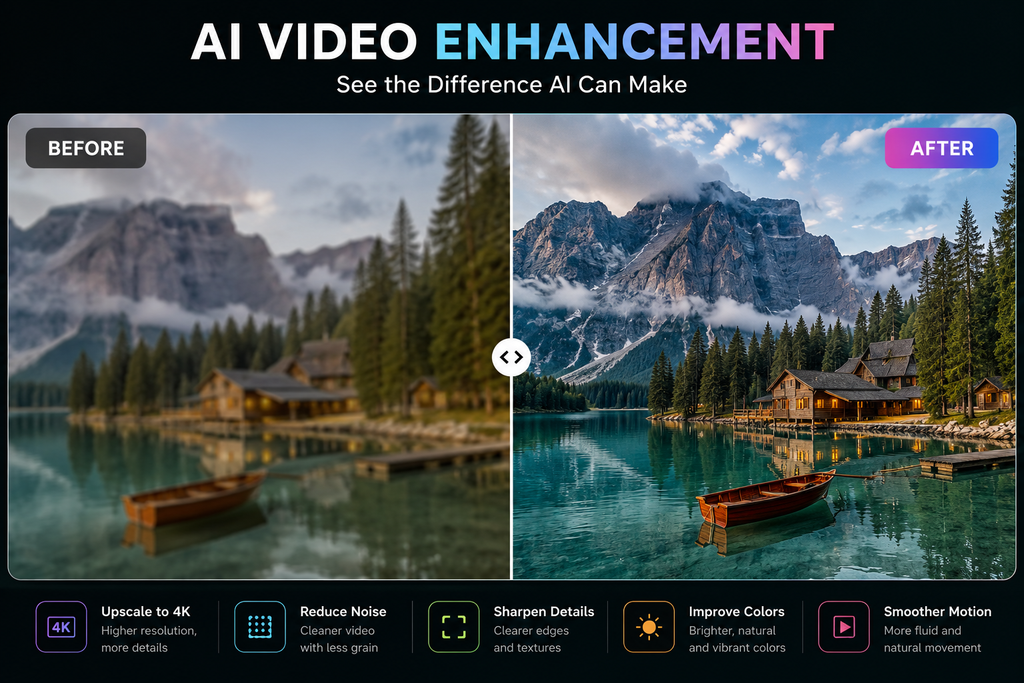
AI enhancement isn’t limited to resolution. It can help improve several different aspects of existing footage, depending on the original video and the capabilities of the tool.
1. Blur
Some AI tools can improve soft or blurry-looking footage, although severe blur can remain difficult to recover.
2. Noise
Footage recorded in low light often contains digital noise. AI processing can reduce some of this noise while attempting to preserve useful details.
3.Sharpness
AI sharpening can make edges and textures appear clearer. However, too much sharpening can create an unnatural appearance.
4. Resolution
An AI video upscaler can increase the output resolution of footage, such as taking lower-resolution footage toward 1080p, 2K, 4K, or higher depending on the tool.
5. Colors and Lighting
Some enhancement tools can also improve brightness, contrast, exposure, and color.
6. Faces and Fine Details
Specialized AI models may improve faces and small details, particularly when the original footage contains enough information for the model to work with.
AI Video Enhancer vs Traditional Editing
These two approaches aren’t necessarily competitors.
Traditional editing gives you more manual control, precise adjustments, detailed color grading, and greater control over individual settings.
AI enhancement gives you faster processing, automatic adjustments, easier workflows, and quick improvement for multiple clips.
For many creators, the best workflow is AI enhancement first, followed by normal editing.
For example, you could enhance a low-quality clip with AI, then bring it into CapCut or another editor for captions, transitions, music, and final adjustments.
Can AI Really Enhance Video Quality to 4K?
Yes, some tools can upscale video to 4K.
But there’s an important difference between 4K output and native 4K footage.
If you start with a low-resolution video and upscale it to 4K, the final file has a 4K resolution. That doesn’t mean the original camera captured the same amount of genuine detail.
AI can estimate and reconstruct missing information, but it cannot guarantee perfect recovery.
So when comparing a 4K video enhancer online free, don’t look at the resolution alone.
Also check detail preservation, face quality, noise reduction, texture, motion, artificial sharpening, and compression artifacts.
Sometimes a naturally enhanced 1080p video can look better than an aggressively processed 4K export.
How to Enhance Video Quality With AI
The exact interface depends on the tool, but the process is usually simple.
Step 1: Choose Your Original Video
Start with the highest-quality version you have.
Avoid repeatedly uploading and downloading the same clip because multiple compressed exports can reduce quality.
Step 2: Upload the video
Open your chosen AI video enhancer and upload the footage.
Step 3: Choose an Enhancement Mode
Depending on the tool, you may find options for general enhancement, portrait footage, low-light footage, upscaling, noise reduction, sharpening, or 4K enhancement.
Step 4: Preview the Result
This step is important.
Don’t judge the result only from the resolution number. Zoom into faces, text, hair, backgrounds, and moving objects.
Step 5: Export
If the enhanced version looks natural, export it at the resolution you actually need.
What Should You Check Before Choosing a Video Quality Enhancer?
A tool may look impressive on its homepage, but these factors matter more when you’re actually working on a project.
Enhancement Quality
Does it genuinely improve the footage, or does it simply make everything look sharper?
Original Video Quality
AI works better when the source contains enough information to analyze.
3. Resolution Options
Check whether you actually need 1080p, 2K, 4K, or something else.
4. Free Limits
A tool may have a free option but limit credits, processing, resolution, or exports.
5. Watermarks
Always check whether the free version adds a watermark before starting your project.
Processing Time
For creators working with many clips, processing speed can matter a lot.
7. Device Support
If you edit on your phone, a mobile-friendly tool may be more useful than a powerful desktop-only application.
My Practical Comparison Checklist
If you’re comparing these tools yourself, don’t just ask “Which one makes my video sharper?”
Use the same short clip and check each tool for face quality, text clarity, hair and fine details, background textures, motion, noise reduction, sharpness, and export quality.
For faces, look for natural skin and facial details. For text, check whether letters remain clear without distortion. For hair, look for fine details without strange patterns. For backgrounds, check whether textures remain natural. For motion, look for smooth-looking movement.
Also check whether noise has been reduced without excessive smoothing and whether sharpening has created halos around objects.
This makes your comparison much more meaningful than simply looking at the marketing claims of each platform.
Tip: If you create your own before-and-after screenshots using the same clip, those screenshots can make your article considerably more useful to readers.
Are Free AI Video Enhancers Worth Using?
For short clips and casual projects, yes.
A free video quality enhancer can be enough when you simply want to improve a Reel, Short, old clip, or social-media video.
But free plans can have restrictions such as limited credits, watermarks, lower export limits, limited processing, or fewer enhancement modes.
So always check the current terms before relying on a free tool for an important project.
Which AI Video Enhancer Should You Choose?
There isn’t one universal winner.
Choose Wink if you’re primarily a mobile creator and want AI enhancement and upscaling in a straightforward workflow.
Choose Vmake if you prefer browser-based enhancement and want AI models aimed at different types of footage and higher-resolution outputs.
Choose Cutout.Pro if you’re looking for an online AI media platform that also provides video enhancement and upscaling tools.
Choose Picsart if your main goal is social-media content and you want enhancement alongside creative editing.
Final Verdict
The best video quality enhancer isn’t necessarily the tool that promises the highest resolution.
For mobile creators, ease of use can matter more. For low-resolution footage, upscaling and detail restoration may matter more. And for social-media creators, having enhancement and editing features together can save time.
Wink and Vmake stand out for dedicated AI enhancement workflows, while Cutout.Pro and Picsart can make sense depending on the rest of your editing needs.
Most importantly, don’t judge an AI enhancer by the 4K label alone. Compare faces, text, fine details, noise, motion, and overall naturalness.
If you’re publishing this article, add your own screenshots and observations after trying the tools yourself. That is the part that can turn a generic comparison into a genuinely useful resource for your readers.
FAQs
What is the best video quality enhancer in 2026?
It depends on your needs. Wink is a strong option for mobile creators, while Vmake is useful for browser-based AI enhancement and upscaling.
Can AI improve video quality?
Yes. AI can help improve clarity, sharpness, noise, resolution, and other visual characteristics, although results depend on the original footage.
Can I use an AI video enhancer for free?
Some tools offer free usage or free options, but limitations can apply to credits, resolution, processing, or exports.
Can I upscale a video to 4K with AI?
Yes. Some AI video enhancers support 4K upscaling. However, a 4K export isn’t the same as footage originally recorded in native 4K.
What is the best free AI video enhancer?
There isn’t one universal answer because free limits and features differ. Compare the output quality and current free-plan restrictions before choosing.
Can AI fix a very blurry video?
AI may improve a blurry video, but extremely poor footage has limitations. The more useful detail contained in the original clip, the better the potential result.
Is an AI video enhancer better than a video editor?
Not necessarily. An enhancer focuses on improving existing footage, while a video editor gives you control over cutting, captions, transitions, audio, effects, and other creative tasks. Using both can be the better workflow.
Best AI Tools to Turn Long Videos into Shorts in 2026: 10 Tools Compared
Text to Video AI Generators in 2026: Best Free & Paid Tools Compared
