How to Expand a Video Background with AI for Free in 2026
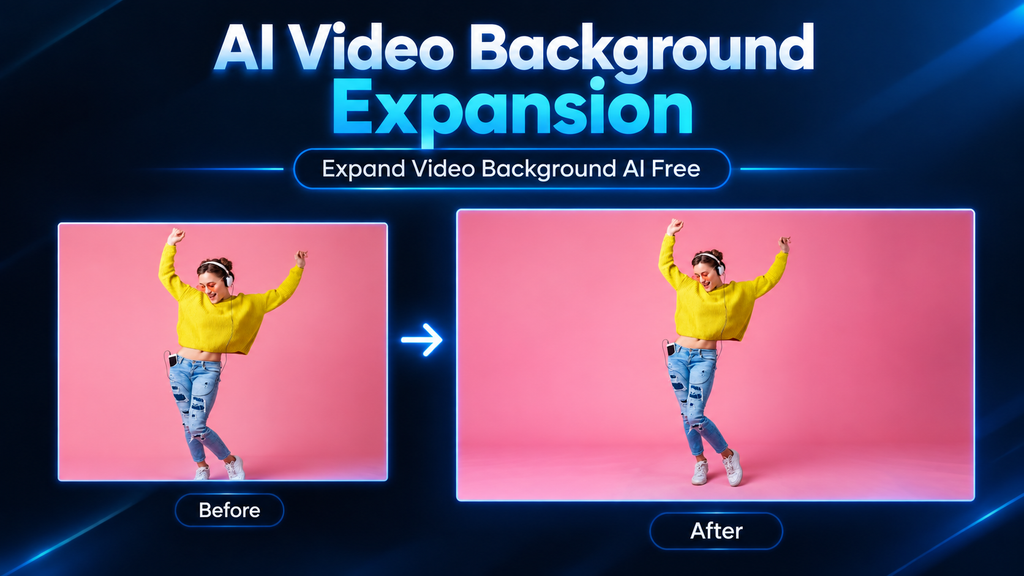
Looking for a way to expand video background AI free in 2026? If you have a video that looks good but the frame is too narrow for the platform where you want to post it, AI can help. Have you ever recorded a video that looks good, but the frame is too narrow for the platform where you want to post it?
Maybe you have a horizontal video that needs to fit a vertical 9:16 format, or the subject is too close to the edge after changing the aspect ratio. Normally, expanding the frame can leave you with empty space, stretched backgrounds, or a lot of manual editing.
That is where AI comes in.
Table of Contents
With an AI video background expander, you can extend the edges of a video and let AI generate additional background content around the original footage. This can be useful when adapting videos for YouTube Shorts, TikTok, Instagram Reels, or other formats.
In this guide, I’ll explain how to expand a video background with AI for free, what these tools actually do, their pros and cons, and what to check before downloading your final video.
What Does AI Video Background Expansion Mean?
AI video background expansion means using artificial intelligence to generate extra visual content around the existing edges of a video.
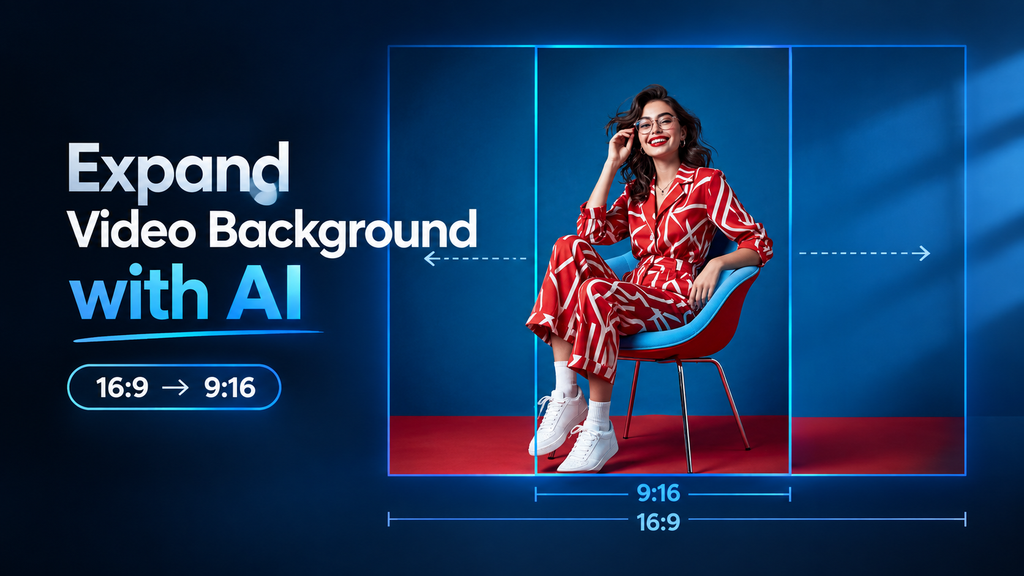
For example, imagine you have a landscape video in 16:9 but want to use it in a vertical 9:16 post. Instead of simply cropping the sides, an AI tool can analyze the existing scene and generate more background around it.

This is sometimes described as:
- AI video background expansion
- AI video outpainting
- AI video frame expansion
- AI video background extension
- AI video resizing
The important thing is that this is not the same as simply stretching a video. AI attempts to create new pixels and visual information that fit the existing scene.
How to Expand a Video Background with AI for Free
The exact buttons are different depending on the tool, but the overall process is usually similar.
Step 1: Choose an AI Video Background Expander
Start with an online tool that supports AI background expansion or video outpainting.
Look for features such as:
- AI background expand
- AI video expander
- AI outpainting
- Aspect-ratio expansion
- 9:16, 16:9, or other output ratios
Some tools may offer a free version, while others may limit the number of generations, resolution, or downloads.
For this guide, I looked at three tools that can be used for this type of video expansion:
VEED AI Background Expand: VEED’s tool can expand video backgrounds between 9:16 and 16:9. In my test, it offered one free try, supported a video up to 1 minute, and the free export included a watermark.
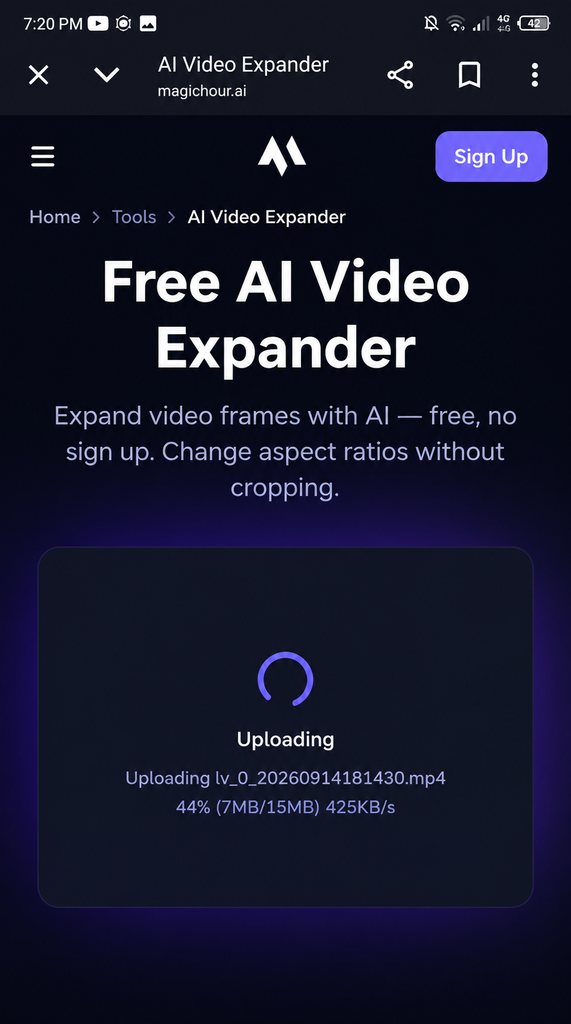
Magic Hour AI Video Expander: In my test, Magic Hour generated a 24-second expanded video at 480p for free. The result included a watermark, while other available options required an upgrade.
VideoExpander: This is a dedicated AI video outpainting tool. Its free tier supports video expansion without an account, including 9:16, 16:9, 1:1, and 4:5 output ratios. The free version expands the first 10 seconds of a video and offers standard-quality output.
Step 2: Upload Your Video
Upload the video you want to expand.
Before processing it, check the original dimensions. Knowing whether your video is landscape, portrait, or square makes it easier to choose the right output ratio.
Step 3: Select the New Video Ratio
Choose the format you need.
For example:
- 9:16 — TikTok, Instagram Reels, YouTube Shorts
- 16:9 — YouTube and standard landscape videos
- 1:1 — Square social media content
If your main subject is already close to an edge, give the AI enough space to generate a natural-looking background.
Step 4: Let AI Expand the Background
Now process the video.
The AI analyzes the existing background and generates additional content around the original frame.
Processing time can depend on the video’s length, resolution, and the tool you’re using.
Step 5: Check the Expanded Areas
Don’t immediately download the result.
Watch the entire video and look closely at the newly generated areas.
Check for:
- Strange objects
- Moving background inconsistencies
- Distorted faces or bodies
- Flickering
- Repeated patterns
- Objects appearing or disappearing
- Unnatural edges
AI-generated video can look convincing in one frame but become noticeable when the scene moves.
Step 6: Download the Final Video
If the result looks natural, export the video in the resolution you need.
If you’re using a free tool, check whether it adds a watermark or limits the export quality before starting your project.
Best Ways to Use AI Video Background Expansion
AI background expansion can be useful in several situations.
Convert Landscape Video to Vertical
This is probably one of the most common use cases.
You may have a 16:9 video but need a 9:16 version for Shorts, Reels, or TikTok. Instead of heavily cropping the original footage, you can use AI to generate more background around the subject.
Fit a Video Into a Different Aspect Ratio
Sometimes the problem isn’t the video itself—the problem is the platform’s required dimensions.
AI can help expand the frame instead of simply zooming or stretching the footage.
Create More Space Around a Subject
If the subject is too close to the edge of the frame, expanding the background can create additional visual space.
This can be especially useful for social media designs where text or other elements need to fit around the video.
Pros of Using AI to Expand Video Backgrounds
1. Saves Manual Editing Time
Traditional background extension can require masking, cloning, keyframes, or other editing techniques.
AI can automate much of that process.
2. Useful for Different Aspect Ratios
One original video can potentially be adapted for several formats without completely rebuilding the edit.
3. Beginner-Friendly
Many AI video tools work directly in a browser, so you don’t necessarily need advanced video-editing knowledge.
4. Can Preserve the Main Subject
Instead of aggressively cropping the original video, AI expansion can keep more of the original frame visible.
5. Useful for Social Media Content
Creators who post the same footage across YouTube, Shorts, TikTok, and Instagram can use background expansion when the original aspect ratio doesn’t match the platform.
Cons of AI Video Background Expansion
AI background expansion isn’t perfect.
1. Results Can Look Artificial
Simple backgrounds are usually easier for AI to recreate. Detailed scenes can produce noticeable mistakes.
2. Moving Objects Can Be Difficult
A background that changes throughout a video is more complicated than a static wall or sky.
The generated area may flicker or change unexpectedly.
3. Free Versions May Have Limits
A free AI video background expander may restrict:
- Export resolution
- Video length
- Number of generations
- Daily usage
- Watermark-free downloads
Always check the tool’s current free limits before relying on it for a finished project.
4. Processing Can Take Time
Longer and higher-resolution videos generally require more processing.
5. Not Every Video Needs AI Expansion
If a simple crop already gives you a good result, using AI may add unnecessary processing.
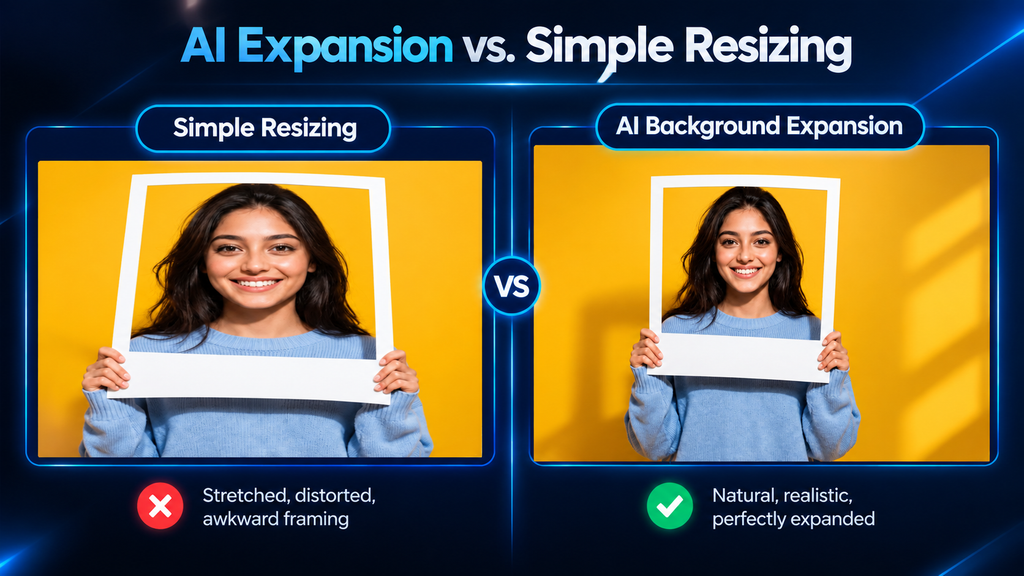
AI Background Expansion vs. Simple Video Resizing
These two things are easy to confuse.
Video resizing changes the dimensions of the existing video.
AI background expansion attempts to create additional visual content outside the original frame.
For example, if you have a landscape video and simply resize it to a vertical format, you may end up with cropping or empty space.
With AI expansion, the goal is to generate additional background so the new frame looks more complete.
That doesn’t mean AI will always produce a perfect result. The quality depends heavily on the original footage and the complexity of the scene.
What Makes a Video Easy or Difficult to Expand?
Not every video gives AI the same challenge.
Easier Videos
AI generally has an easier job when the background contains things like:
- Sky
- Walls
- Floors
- Simple landscapes
- Blurred backgrounds
- Repeating textures
More Difficult Videos
Expansion can become harder when the background contains:
- Crowds
- Faces
- Text
- Buildings with detailed patterns
- Cars
- Fast-moving objects
- Complicated lighting
- Multiple people moving around
This is why I would always recommend checking the complete generated video instead of judging the result from a single screenshot.
How to Get Better Results When Expanding a Video Background
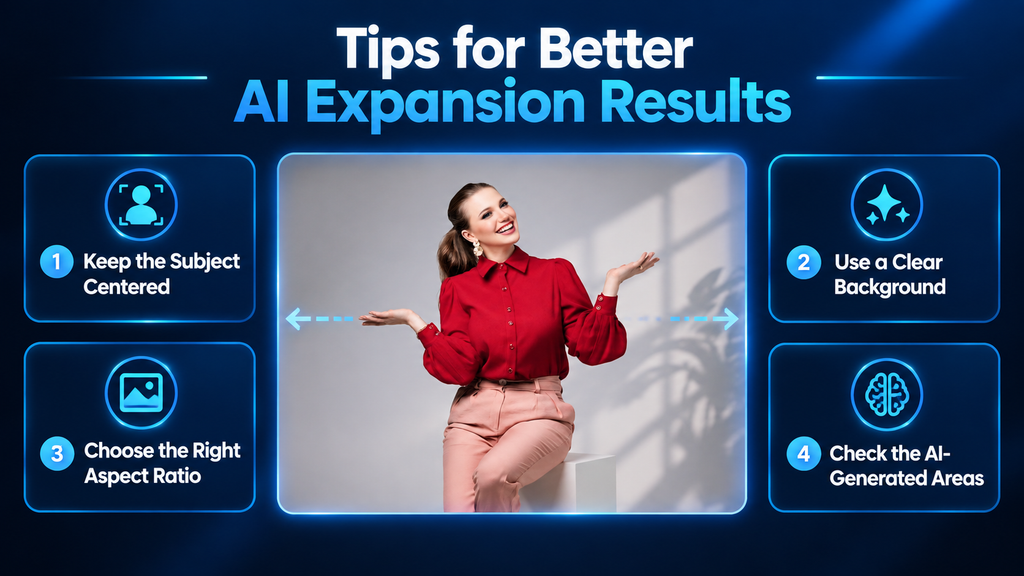
You don’t have complete control over what AI generates, but a few things can help.
Keep the Main Subject Away From the Edge
If possible, start with footage where the subject has some space around them.
Use High-Quality Original Footage
A clean, high-resolution source gives the AI more visual information to work with.
Don’t Expand Too Much at Once
A small expansion may look much more natural than trying to create a huge amount of missing background.
Check the Video, Not Just the First Frame
A generated background can look perfect in a still image but reveal problems once the video starts moving.
Try a Different Crop If the Result Looks Bad
AI expansion isn’t always the answer. Sometimes changing the crop or repositioning the original video produces a cleaner result.
Expand Video Background AI Free
Some AI video tools may provide free access to background expansion or related features.
However, free doesn’t always mean unlimited.
A tool may allow free processing but restrict the export resolution, video length, credits, or watermark-free downloads.
So if you’re searching for an AI video background expander free option, check the current limits of the specific tool before starting.
Free plans can also change over time.
Can You Expand a Video Background Online?
Yes.
Online AI video tools can handle the process through a web browser, meaning you don’t necessarily need professional desktop editing software.
This can be especially convenient if you just need to quickly expand a video background online for a social media format.
The main things to check are:
- Supported video formats
- Maximum video length
- Supported aspect ratios
- Free export limits
- Watermarks
- Output resolution
AI Video Background Expansion for 9:16 Videos
If your goal is to turn a landscape video into a vertical video, 9:16 is one of the most useful ratios to consider.
For example, you may have a standard landscape clip and want to adapt it for Shorts or Reels.
Instead of simply cutting away the sides, an AI tool can attempt to expand the background around the original footage.
This is where AI expand video background online free tools can be useful, especially when you want to experiment before paying for a premium editing tool.
My Take After Researching AI Video Background Expansion
I think this is one of those AI features that makes the most sense when you have a specific problem to solve.
I also tested VEED and Magic Hour using the same type of source video to see how their free options handled background expansion.
VEED allowed a free test of its AI Background Expand feature, while the exported result included a watermark. Magic Hour also produced an expanded result at 480p for free, with a watermark. These tests showed why checking the actual output and free restrictions matters more than simply seeing the word “free” on a tool’s page.
For another option, VideoExpander currently provides a free AI outpainting workflow that can expand a video into formats such as 9:16 and 16:9. Its free mode expands the first 10 seconds, so it can be useful for testing the feature before deciding whether you need a paid plan.
You don’t necessarily need AI to edit every video.
But if you have a good clip that doesn’t fit the aspect ratio you need, completely cropping it can remove important parts of the scene. Background expansion gives you another option.
The biggest thing I would keep in mind is that AI-generated background isn’t automatically perfect. A tool can produce a great-looking result on one scene and a strange result on another.
So rather than choosing a tool only because it says “AI,” I’d judge it by the actual output, export quality, free limits, and how consistently it handles moving footage.
Frequently Asked Questions
What is an AI video background expander?
An AI video background expander is a tool that uses artificial intelligence to generate additional background around an existing video frame. It can help adapt footage to different aspect ratios without relying entirely on cropping.
Can I expand a video background for free?
Yes, some tools provide free AI background expansion. However, free plans may have restrictions such as watermarks, limited credits, shorter videos, or lower export resolutions.
Can AI expand a video to 9:16?
Yes. Some AI video expansion tools can generate additional background to help convert landscape footage into a vertical 9:16 format.
Is AI video background expansion the same as resizing?
No. Resizing changes the dimensions of the existing footage, while AI expansion attempts to generate new visual content outside the original frame.
What is AI video outpainting?
AI video outpainting is a technique where AI generates additional visual content outside the original video frame. It is closely related to AI video background expansion.
Does AI background expansion work on every video?
No. Results vary depending on the scene. Simple backgrounds are generally easier to expand than complicated scenes with crowds, text, detailed objects, or lots of movement.
Can I expand a video background online?
Yes. Several browser-based AI tools offer video expansion or related outpainting features, so you can perform the process without installing professional desktop editing software.
Will the expanded background look exactly like the original?
Not necessarily. AI tries to create a visually consistent continuation, but generated areas can contain mistakes, flickering, or unnatural details. Always review the final video.
Final Verdict
If you have a video that doesn’t fit the aspect ratio you need, AI background expansion is worth trying before heavily cropping the original footage.
The process is simple: upload your video, choose the desired frame or aspect ratio, let the AI generate the additional background, and carefully review the result.
For simple scenes, the result can be surprisingly useful. For complicated moving scenes, you may need to try another tool or use traditional editing instead.
And if you’re specifically looking for a free way to expand a video background with AI, start with the free options and compare their actual output rather than assuming the most popular tool will automatically give you the best result.
The technology is useful, but the final video is what matters.
Best AI Tools to remove filler words from video in 2026