
Remove Silence from a Video for Free in 2026: Best Tools
remove silence from video Long pauses can make an otherwise good video feel slow. This is especially noticeable in talking-head videos, tutorials, interviews, podcasts, screen recordings, and voiceovers where there may be several seconds of silence between sentences.
The good news is that you don’t always need expensive editing software to fix this. You can remove silence from a video for free using online tools or free video editors that automatically detect quiet sections and cut them out.
Some of these tools use AI or automatic speech detection, while others give you traditional editing controls. In this guide, I’ll compare several options and look at their free features, watermark policies, ease of use, and how much control you get over the final cuts.
Table of Contents
What Does Removing Silence from a Video Actually Do?
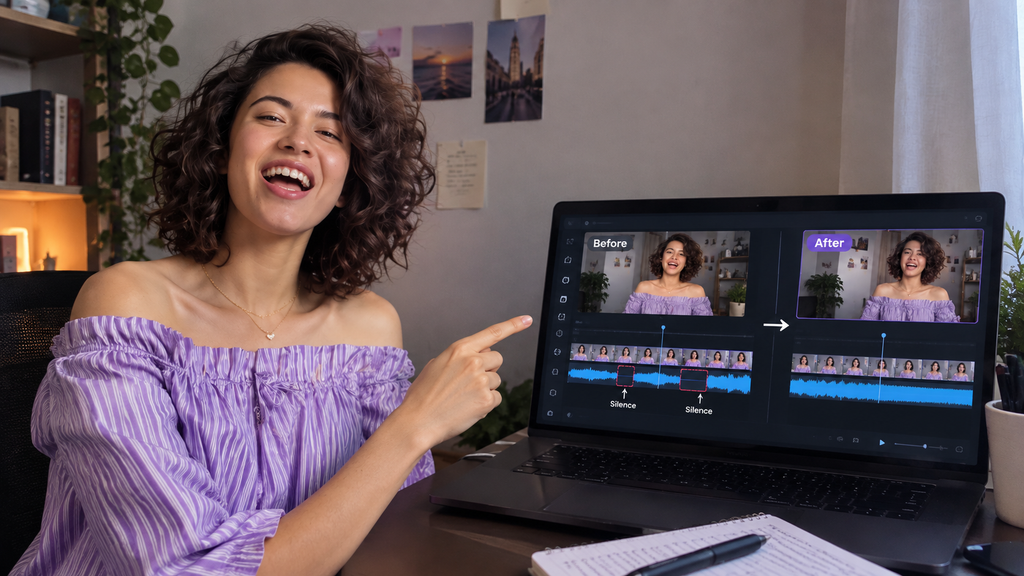
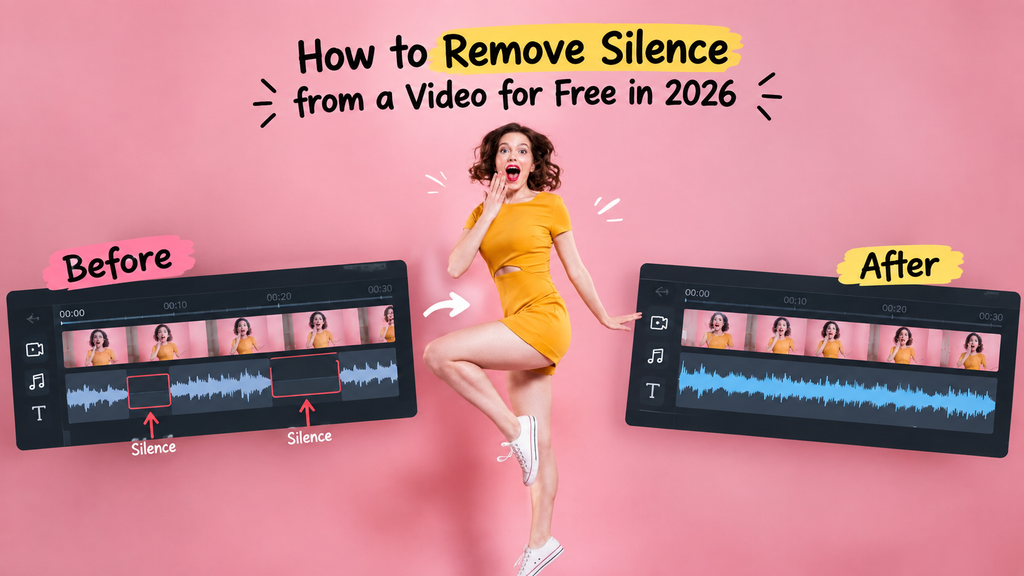
A silence remover looks for sections of your recording where there is little or no audible speech and then removes those sections from the timeline.
For example:
Talking → 5-second pause → Talking → 3-second pause → Talking
After removing unnecessary silence:
Talking → Talking → Talking
This can make tutorials, interviews, podcasts, and other spoken videos feel more focused.
However, automatic detection is not perfect. A quiet moment can sometimes be intentional, so you should always preview the cuts before publishing.
Best Ways to Remove Silence from Video for Free
There isn’t one perfect tool for everyone. The best option depends on whether you want a browser-based solution, a desktop editor, or a completely free workflow.
| Tool | Platform | Free option | Watermark | Best for |
|---|---|---|---|---|
| Clipchamp | Browser/Desktop | Yes | Depends on export/features | Beginners |
| VidClean | Browser | Yes | No | Quick online cuts |
| Rendley | Browser | Yes | Yes on Free plan | Online editing |
| VEED | Browser | Limited | Depends on plan | Online editing |
| DaVinci Resolve | Desktop | Yes | No | Advanced editing |
Free features and export policies can change, so check the current terms before exporting a final project.
Clipchamp
Clipchamp is one of the easiest options for beginners who want to automatically remove silence from video.
Its AI-powered silence removal detects pauses longer than three seconds in media containing audio or voice. You can preview the detected pauses and choose whether to ignore, remove individually, or remove them all. Microsoft currently states that silence removal is free for Clipchamp users.
Pros:
- Free silence removal
- Beginner-friendly interface
- Automatically detects pauses longer than 3 seconds
- Lets you review detected silences
- Useful for talking-head videos and recordings
Cons:
- Pauses shorter than 3 seconds aren’t automatically recommended for removal
- You still need to review the automatic cuts
- Your video needs to contain audio or voice
Best for: Beginners who want an easy AI-based workflow.
VidClean
VidClean is a browser-based option if your priority is to remove silence from video without watermark.
According to its current website, VidClean requires no account, adds no watermark, and doesn’t have a monthly cap for its core file tools. It also states that uploaded files are automatically deleted after about 90 minutes.
Pros:
- No account required
- No watermark
- Browser-based
- Supports video and audio tools
- Simple workflow
- Files are automatically deleted after processing according to the service
Cons:
- Your video is processed on its servers
- Internet connection is required
- You should still review the privacy policy before uploading sensitive footage
Best for: Creators who want a quick online silence remover without signing up.
Rendley
Rendley includes automatic silence removal through a feature called Smart Cut. It works directly inside its browser-based editor and lets you review, adjust, or undo detected cuts.
Its current Free plan exports at 720p with a small watermark, while paid plans remove the watermark and provide higher resolutions.
Pros:
- Works directly in the browser
- Automatic silence detection
- Cuts can be reviewed and adjusted
- Includes other editing tools
Cons:
- Free exports are limited to 720p
- Free exports include a small watermark
- Higher-quality exports require a paid plan
Best for: Users who want silence removal inside a complete online editor.
VEED
VEED has a dedicated silence-removal feature as well as its broader online video editor.
Its current Help Center states that the Remove Silences tool can be tried once on the Free plan. Paid plans provide full access. The tool specifically removes complete silences; if there is speech, breathing, or background noise, that section won’t be treated as complete silence.
Pros:
- Works online
- No software installation
- Automatically detects complete silences
- Includes many other video-editing features
Cons:
- Free silence-removal access is limited
- Requires an account
- Some advanced features require a paid plan
Best for: Creators who already use VEED for online video editing.
DaVinci Resolve
If you prefer desktop software, DaVinci Resolve is another powerful option for editing spoken videos.
It provides professional editing controls and is better suited to users who want to make additional changes after removing silence.
Pros:
- Powerful professional editor
- Desktop-based
- Excellent control over the final edit
- Suitable for longer and more complex projects
- Free version available
Cons:
- More complicated for beginners
- Requires installation
- Steeper learning curve than simple browser tools
Best for: Editors who want more control than a basic online silence remover provides.
How to Remove Silence from a Video Online for Free
If you don’t want to install editing software, an online silence remover is usually the quickest approach.
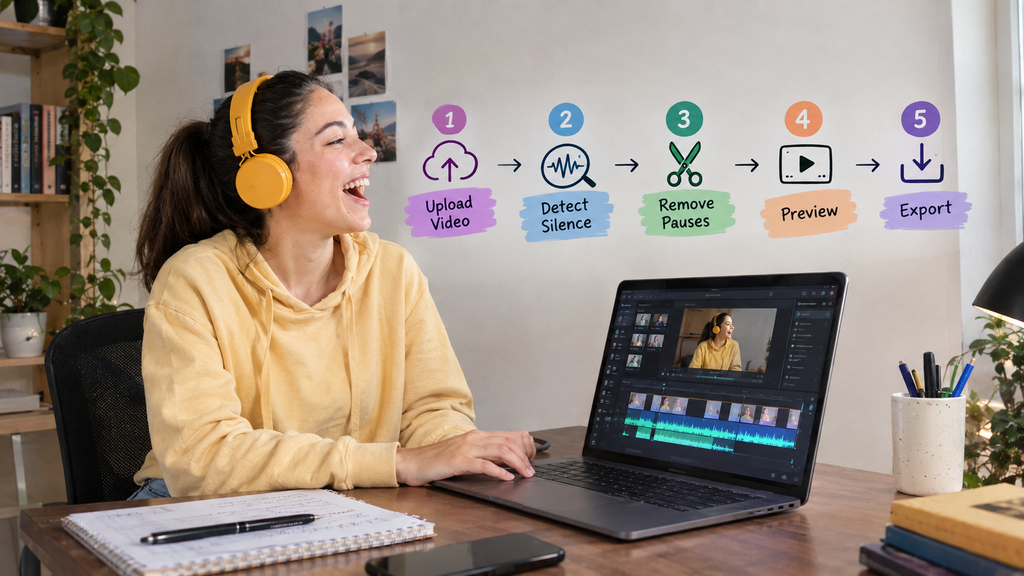
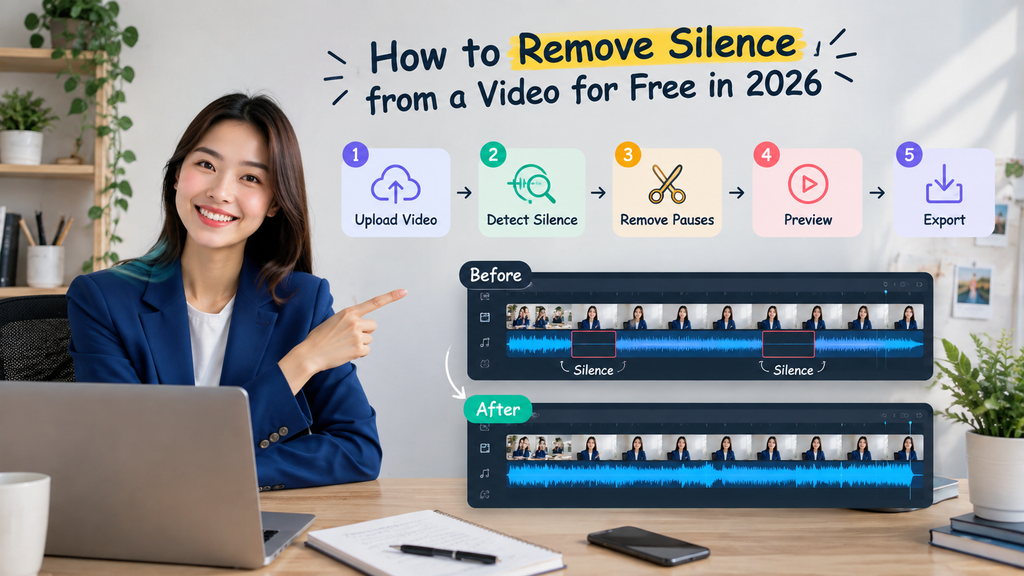
The general process is:
- Open an online silence-removal tool.
- Upload your video.
- Let the tool analyze the audio.
- Review the detected silent sections.
- Remove the unwanted pauses.
- Preview the edited video.
- Export the result.
The important step is reviewing the cuts. Don’t simply export immediately after automatic processing.
A silence detector can identify low-volume sections, but it doesn’t always understand whether a pause was intentionally included for emphasis.
How to Automatically Remove Silence from Video
Automatic silence removal is especially useful when you’re working with long recordings.
Instead of manually finding every pause, the software analyzes the audio and identifies sections that meet its silence criteria.
For example, Clipchamp currently looks for pauses longer than three seconds when using its AI-powered silence-removal feature.
Other tools can use different detection methods, so two silence removers may produce slightly different results from the same video.
This is why it’s better to preview the final cuts instead of assuming that automatic removal will always be perfect.
How to Remove Silence from Audio Instead
You don’t necessarily have to edit the video first.
If your main problem is a voice recording, podcast, interview, or voiceover, you can also use a remove silence from audio tool.
The basic process is:
Audio recording → detect quiet sections → remove unwanted gaps → export cleaned audio
You can then place the cleaned audio back into your video editor if necessary.
This approach can be useful when you’re working with voiceovers separately from your video footage.
Can You Remove Silence from Video in CapCut?
CapCut can be used to manually cut unwanted pauses from a video, but the exact automatic silence-removal features can vary between its mobile, desktop, and web versions.
If you’re already editing in CapCut, check the current version you’re using before relying on a specific automatic feature.
For a short video, manually cutting obvious pauses may be enough. For longer talking videos, an automatic silence-removal tool can save more time.
Remove Silence from Video Without Watermark: Which Option Is Better?
If avoiding a watermark is your priority, don’t assume that every tool advertised as “free” produces a watermark-free export.
For example, VidClean currently states that it provides no-watermark exports, while Rendley’s current Free plan includes a small watermark.
This is an important difference because free to use and free to export without restrictions are not always the same thing.
Before choosing a tool, check:
- Is an account required?
- Is there a watermark?
- Is there a video-length limit?
- Is the export resolution restricted?
- Is there a daily or monthly usage limit?
- Does the tool upload your video to a server?
Online vs Desktop Silence Removal
Online Tools
Online tools are usually better when you want speed.
Pros:
- No installation
- Easy for beginners
- Works from a browser
- Quick for short projects
Cons:
- Requires uploading footage
- Internet connection matters
- Free plans may have limits
Desktop Editors
Desktop editors are better when you want more control.
Pros:
- More editing features
- Better for larger projects
- More control over cuts
- Better suited to detailed editing workflows
Cons:
- Takes longer to learn
- Software requires storage
- More complicated interface
For a quick talking-head video, I’d choose a simple online tool. For a long project where I need precise control over the edit, a desktop editor makes more sense.
What I Would Choose for Different Situations
For beginners: Clipchamp
For a quick browser-based workflow without a watermark: VidClean
For an online editor with additional tools: VEED
For a full desktop editing workflow: DaVinci Resolve
For users who don’t mind a watermark on the free plan: Rendley
The “best” option really depends on what you care about most. If you only want to remove a few pauses, using a full professional editor may be unnecessary.
My Tips for Getting Better Silence Removal Results
Automatic tools work best when your recording has reasonably clear speech.
Before processing your video:
- Record in a relatively quiet environment.
- Keep background noise low.
- Don’t remove every tiny pause.
- Listen to the cuts before exporting.
- Keep short pauses when they make the speech sound natural.
- Watch the video after cutting to make sure the jump cuts aren’t distracting.
One of the biggest mistakes is trying to make every sentence run immediately into the next one.
A little breathing room can make a video sound much more natural.
Frequently Asked Questions About Removing Silence from Video
How do I remove silence in videos?
You can use an automatic silence-removal tool such as Clipchamp, VEED, or another browser-based editor. Upload the video, let the software detect quiet sections, review the cuts, and export the edited video. Clipchamp currently provides free silence removal for supported media.
Can I remove silence from a video for free?
Yes. Several tools offer free silence-removal options. However, “free” can have different meanings, so check for watermarks, export limits, account requirements, and usage restrictions before choosing a tool.
Can silence be removed automatically from a video?
Yes. Automatic silence removers analyze the audio and identify quiet sections based on their detection settings. Clipchamp, for example, identifies pauses longer than three seconds for its silence-removal recommendations.
How can I remove silence from audio?
You can use an online audio editor or video editor with silence detection. The tool identifies quiet sections and removes them, after which you can export the cleaned audio.
Can CapCut remove silences?
CapCut can help you remove unwanted pauses through its editing tools, although the available automatic features can vary depending on the version and platform you’re using.
How do I remove silence from a video without a watermark?
Look specifically for a tool whose current free export policy says that it does not add a watermark. Don’t rely only on the word “free.” VidClean currently states that its exports have no watermark, while Rendley’s Free plan currently includes a small watermark.
Is it better to remove every silence from a video?
No. Removing every pause can make someone sound unnatural and can create noticeable jump cuts. It’s usually better to remove unnecessary dead air while keeping short pauses that help the speech flow naturally.
What is the easiest way to remove silence from a talking-head video?
For a beginner, an automatic silence-removal tool is usually easier than manually searching through the entire timeline. Clipchamp is one straightforward option because it automatically identifies longer pauses and lets you review them before removal.
Final Verdict
You don’t need an expensive editor just to remove silence from a video.
For beginners, an automatic tool can save a lot of manual cutting, especially when you’re editing interviews, tutorials, podcasts, voiceovers, or talking-head videos.
If you want a simple free workflow, Clipchamp is a good starting point. If you specifically want a browser tool with no watermark and no account requirement, VidClean is another option to consider. For more advanced desktop editing, DaVinci Resolve gives you much more control.
Most importantly, don’t judge a silence remover only by how quickly it cuts your video. The quality of the cuts matters more than the number of seconds saved.
Best AI Tools to Remove Filler Words from Video in 2026Best AI Tools to Remove Filler Words from Video in 2026
