
Best AI Tools to Remove Silence and Filler Words from Videos in 2026
If you want to remove filler words from video, AI video editing tools can save you a lot of manual editing time. Editing a talking video can sometimes take longer than recording it. A few seconds of silence here, an “um” or “uh” there, and suddenly a short video needs a lot of manual cutting.
That’s where AI video editing tools can make a real difference. Instead of searching through the entire timeline for every pause or filler word, these tools can analyze spoken content and help identify parts that may not need to be in the final video.
I tested and compared several AI video editing tools that focus on removing silence, filler words, or both. Rather than choosing a winner based only on the number of features, I paid attention to how easy each workflow feels, how much control you get over the edits, and whether the final result still sounds natural.
In this guide, I’ll compare Descript, CapCut, Adobe Premiere Pro, VEED, and Gling, including their strengths, limitations, pricing considerations, and the type of creator each tool is best suited for
Table of Contents
Quick Comparison
| Tool | Best For | Silence Removal | Filler Word Removal | Platform | Free/Paid |
|---|
| Descript | Text-based video editing | Yes | Yes | Desktop/Web | Free/Paid |
| CapCut | Shorts & social videos | Yes | Yes | Desktop/Mobile/Web | Free/Paid |
| Adobe Premiere Pro | Professional editing | Yes | Yes | Desktop | Paid |
| VEED | Quick browser-based editing | Yes | Yes | Web | Free/Paid |
| Gling | Talking-head videos | Yes | Yes | Desktop |
How I Compared These AI Video Editing Tools
I didn’t want to compare these tools simply by counting features.
For this type of editing, the important question is whether the tool actually saves time without making the video sound unnatural.
I looked at:
- How easily the tool detects silence
- How accurately it identifies filler words
- Whether the cuts sound natural
- How much manual control is available
- How easy the overall workflow is
- Free versus paid access
- Export quality and limitations
- Whether the tool makes more sense for Shorts, talking-head videos, podcasts, or professional editing
I also paid attention to something that is easy to overlook: not every pause should be removed.
A short pause can make speech feel natural, give viewers time to process information, or add emphasis. Removing every pause can make a speaker sound rushed.
That’s why I think a good AI editor should save time without completely taking control away from the creator.
How to Remove Filler Words from Video with AI
remove filler words from video. The basic process is similar across many AI video editors:
- Upload your video.
- Let the tool analyze the speech or generate a transcript.
- Find the detected pauses and filler words.
- Review the suggested cuts.
- Keep, remove, or adjust anything that doesn’t sound right.
- Export the cleaned-up video.
The important step is reviewing the edits before exporting.
AI can identify a pause or filler word, but that doesn’t always mean it should be removed. A pause may be intentional, and a filler word can sometimes be part of the natural rhythm of a conversation.
1. Descript
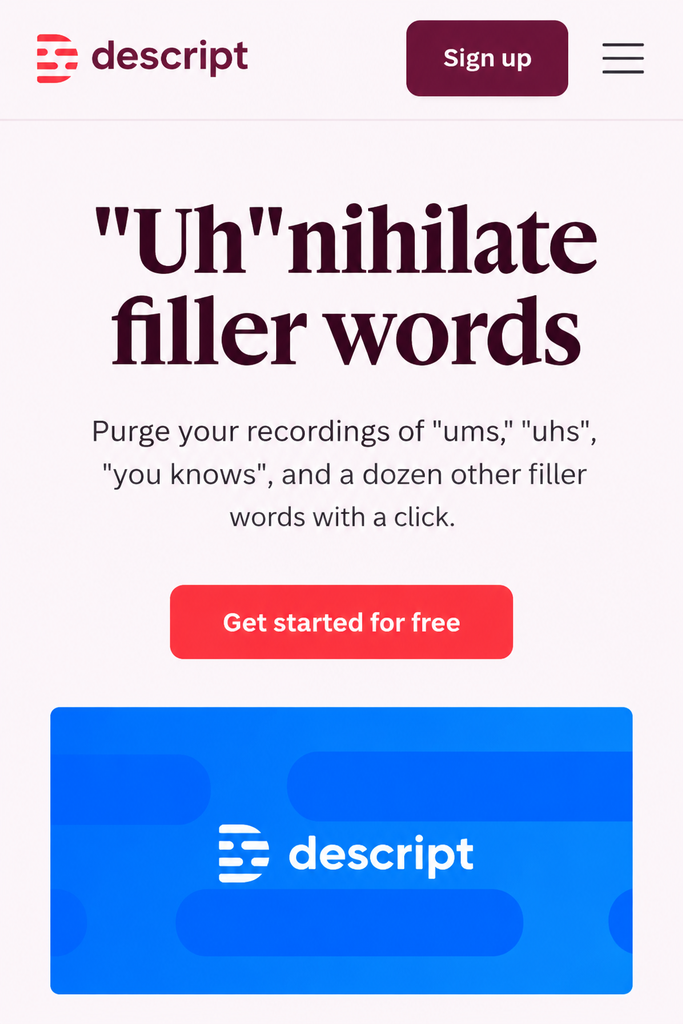
Descript is one of the most interesting options for removing silence and filler words because its editing workflow is built around transcription.
Instead of treating the video only as a timeline, Descript lets you work with the transcript and use it to make edits to the media.
Its tools include filler-word removal as well as controls for shortening or removing word gaps and silence.
What I Found
When working with spoken content, I found the transcript-based approach particularly useful because it makes the cleanup process easier to follow.
Instead of manually searching through the entire waveform, you can work with the words on screen and identify sections that need editing.
I also think the amount of silence you remove matters. If the cuts are too aggressive, speech can start to sound rushed or clipped.
That’s why I would always preview the result before exporting the final video.
Pros
- Transcript-based editing is easy to understand
- Removes common filler words
- Can shorten or remove unwanted word gaps
- Useful for podcasts, interviews, tutorials, and talking-head videos
- Gives creators control over the cleanup process
Cons
- Some advanced features depend on the plan
- Aggressive silence removal can make speech sound rushed
- May take some time to get used to if you have never edited through a transcript
Best For
Descript is best for creators who regularly edit talking-head videos, podcasts, interviews, tutorials, or educational content and want to clean up speech without manually searching through every pause.
2. CapCut
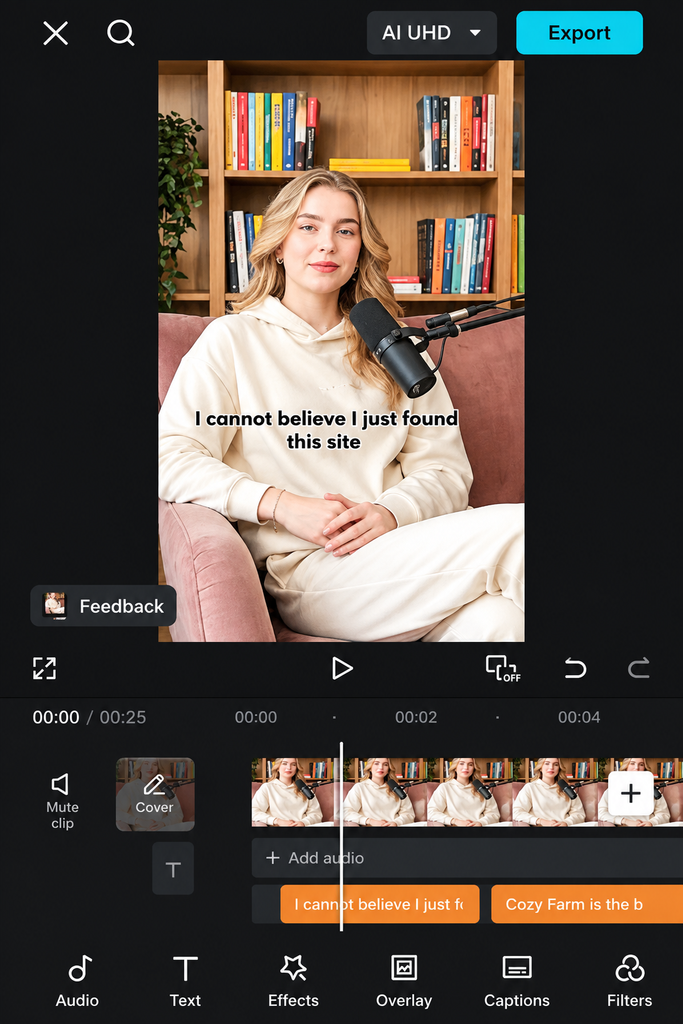
CapCut is especially useful for creators who make Shorts, Reels, TikTok-style videos, and other short-form content.
Its AI-powered editing workflow can identify filler words and help creators remove unwanted parts of spoken footage without manually cutting every section
What I Found
What I like about CapCut for this type of editing is that filler-word cleanup is part of a much larger video-editing workflow.
You don’t have to clean the speech in one application and then move the video into another editor just to add captions, transitions, text, or other effects.
For short-form content, that can make the whole editing process feel more convenient.
However, I would still review every automatic cut. A tool may correctly identify a filler word but removing it can sometimes change the rhythm of the sentence
Pros
- Good fit for short-form content
- Easy to understand editing workflow
- Captions and other editing tools are available in the same environment
- Useful for social media creators
Cons
- Some features depend on the version or plan
- Automatic edits still need reviewing
- More than you need if your only goal is removing a few pauses
Best for
CapCut is best for creators making Shorts, Reels, social media videos, tutorials, and other short-form content.
3. Adobe Premiere Pro
Adobe Premiere Pro takes a more professional approach to removing pauses and filler words.
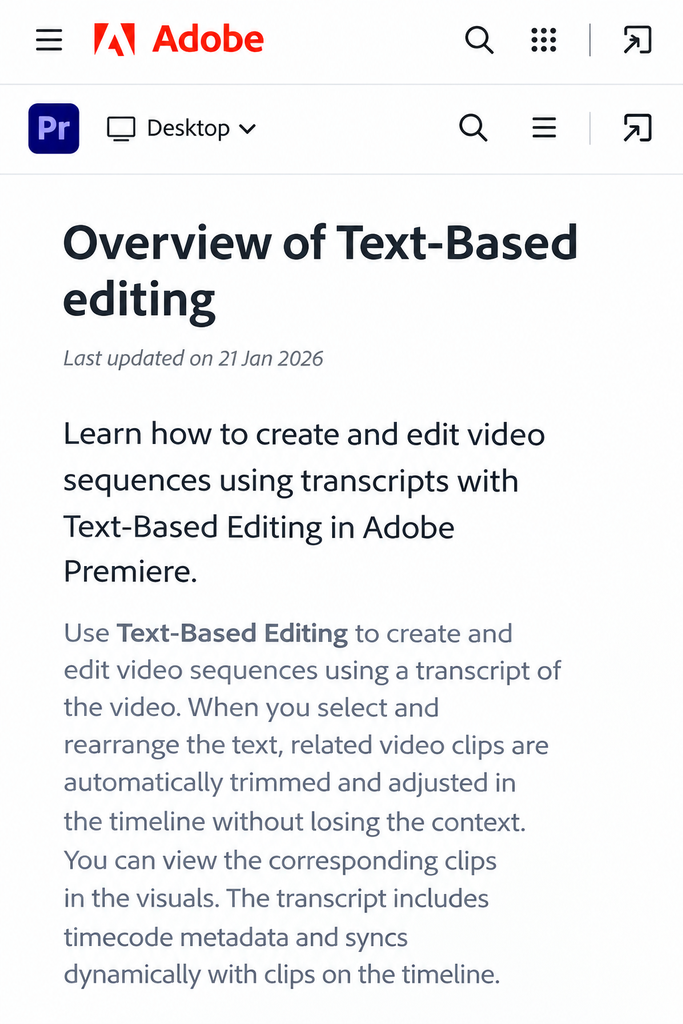
Its Text-Based Editing workflow can detect pauses and filler words in a transcript and allows editors to delete individual instances or remove multiple detected sections
What I Found
The biggest advantage of Premiere Pro is control.
Instead of relying completely on an automatic cleanup button, you can work directly with the transcript and decide which pauses or filler words should actually be removed.
For professional projects, this matters because not every pause is a mistake. Sometimes a pause is part of the delivery.
Premiere Pro makes more sense if you already use the software for your regular editing workflow rather than downloading it only to remove filler words
Pros
- Professional video-editing environment
- Text-Based Editing makes spoken-content cleanup easier
- Supports bulk removal of detected pauses and filler words
- Excellent choice for experienced editors
- Detailed control over the final edit
Cons
- More complicated than beginner-focused editors
- Paid software
- May be unnecessary if you only need basic silence removal
- Has a steeper learning curve
Best for
Premiere Pro is best for professional editors, agencies, filmmakers, and experienced creators who want detailed control over their video edits.
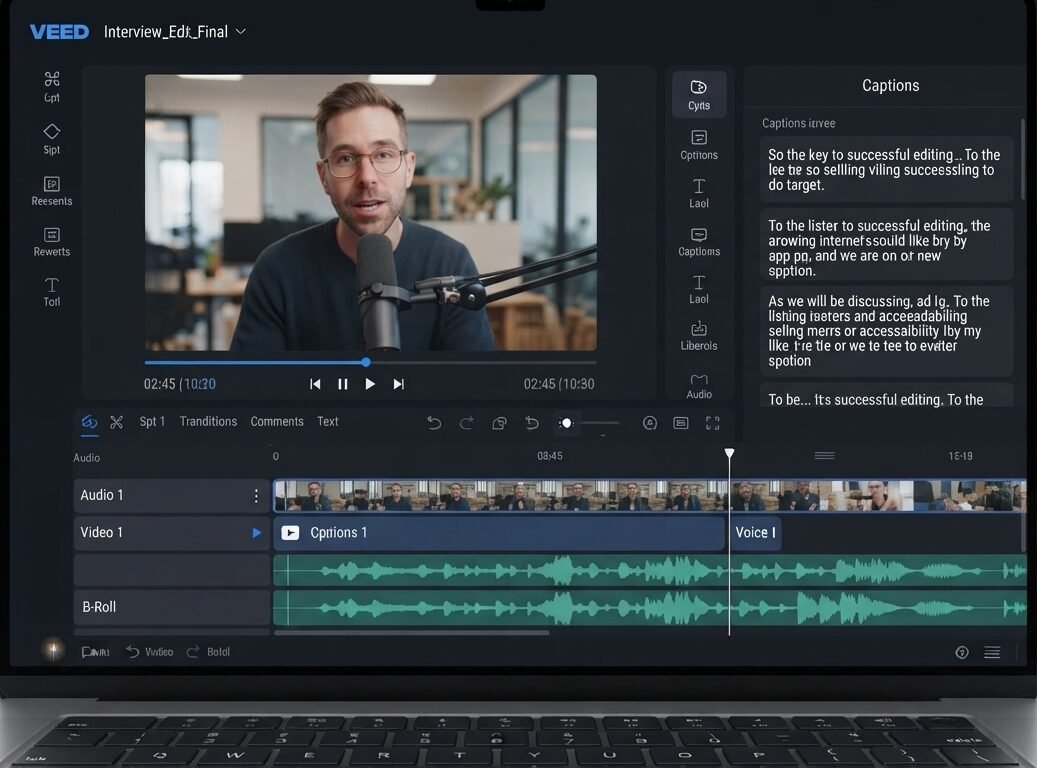
4. VEED
VEED is a browser-based video editor that makes AI-assisted cleanup accessible without requiring a traditional desktop editing workflow.
Its Magic Cut feature can automatically identify and trim silences, filler words, mistakes, and unnecessary pauses.
What I Found
The biggest advantage of VEED is simplicity.
For someone who doesn’t want to learn a complicated editing program, an automated workflow can make the first cleanup pass much faster.
I also like the idea of reviewing the generated edits before exporting because automatic editing isn’t always perfect.
If the AI removes a pause that was actually important to the delivery, you want the ability to correct that before publishing.
Pros
- Works directly in the browser
- AI-assisted removal of silence and filler words
- Easy workflow for beginners
- Automatic editing can save manual cutting time
- Edits can be reviewed before export
Cons
- Some advanced features may depend on the plan
- Automatic edits still need a final review
- Browser-based editing may not be ideal for every professional workflow
Best for
VEED is best for creators who want quick browser-based video editing without learning a complicated professional editor.
5. Gling
Gling is designed around speeding up the editing process for creator-focused videos.
Its workflow focuses on automatically detecting things such as silent moments, filler words, bad takes, and other parts of raw footage that may not need to remain in the final edit.
What Makes Gling Useful?
Gling makes the most sense when you have a lot of raw talking footage that needs cleaning before the rest of the editing begins.
For example, if you record multiple takes and have several silent sections or filler words throughout the footage, automatically identifying those sections can reduce the amount of manual timeline work.
This makes it particularly interesting for YouTubers and talking-head creators who regularly record longer videos.
The important part is still the review stage. Automatic cleanup is useful as a first pass, but I would always watch the edited result before publishing.
Pros
- Designed around faster creator workflows
- Removes silent moments
- Detects filler words
- Can help remove bad takes and retakes
- Useful for talking-head content
Cons
- Desktop-focused workflow
- Better suited to spoken creator content than every type of video
- Automatic edits should still be reviewed
Best for
Gling is best for YouTubers and talking-head creators who want to turn long raw recordings into cleaner edits faster
What Makes a Good AI Silence and Filler Word Remover?

Not every AI editor produces the same result.
A tool can technically remove silence and filler words but still create a video that sounds rushed or contains awkward cuts
Accurate Silence Detection
The tool should distinguish between actual dead air and intentional pauses.
A pause before an important sentence can be useful. Removing every pause simply because it is silent can make the speaker sound unnatural.
Accurate Filler Word Detection
Words such as “um,” “uh,” and “you know” are common filler words, but context matters.
A good AI filler-word remover should make it easy to review detected words before removing them
Natural Cuts
This is one of the most important things I would check.
After removing a pause or filler word, listen to the sentence again. If the transition sounds abrupt or the speaker suddenly sounds rushed, the edit needs adjustment
Manual Control
AI should save time, not take control away from the creator.
Being able to undo a cut, keep a detected word, or adjust the amount of silence removed is valuable
Export Quality
Cleaning up speech is only half the job.
The final exported video should still maintain good audio and video quality. Always check the actual exported file rather than judging the result only from the editing preview.
Free vs Paid AI Video Editors
You don’t necessarily need to pay for an expensive editor just to remove a few pauses or filler words.
For occasional editing, a free plan may be enough.
However, regular creators may benefit from paying for a tool if it also provides features they already need, such as captions, transcription, advanced editing, better export options, or additional AI tools.
I also recommend checking the free plan carefully before starting a project. Some tools may limit exports, processing, resolution, credits, or other features.
So instead of asking only, “Which tool is cheapest?”, I would ask:
Does this tool actually save me time, and does the final video still sound natural?
Which AI Tool Should You Choose?
Here’s how I would narrow it down:
Choose Descript if you want transcript-based editing and regularly work with spoken content.
Choose CapCut if your main focus is Shorts, Reels, and other social media videos.
Choose Adobe Premiere Pro if you want professional editing and detailed control over pauses and filler words.
Choose VEED if you want a simple browser-based workflow.
Choose Gling if you mainly create talking-head or YouTube-style videos and want to clean raw footage quickly.
What I Would Choose
If I wanted a simple workflow for short-form content, I would look at CapCut first.
For long talking-head videos, interviews, or podcasts, Descript and Gling are more interesting because their workflows are built around spoken content.
remove filler words from video. If I were already editing professionally in Adobe Premiere Pro, I wouldn’t switch to another tool just to remove filler words. Premiere Pro already gives experienced editors detailed control over transcript-based editing.
For quick browser-based editing, VEED is a practical choice.
That’s why I don’t think there is one universal winner. The right choice depends on what you’re creating, how often you edit, and how much control you want over the final video.
Frequently Asked Questions
What is the best AI tool to remove filler words from a video?
remove filler words from video. There isn’t one tool that is best for everyone. Descript, CapCut, Premiere Pro, VEED, and Gling all take different approaches. The best choice depends on your editing workflow and how much control you need.
Can AI automatically remove silence from a video?
Yes. Several AI video editors can detect silent sections and shorten or remove them automatically. The exact workflow and available features depend on the tool
Can AI remove “um” and “uh” from videos?
Yes. AI editing tools can identify common filler words such as “um” and “uh” and help remove them from spoken content.
Will removing filler words make a video sound unnatural?
It can if the edits are too aggressive.
Not every hesitation or pause needs to be removed. After automatic processing, listen to the edited sentences and keep pauses that help the speaker sound natural.
Is it better to remove silence automatically or manually?
Automatic removal is usually faster for longer recordings, while manual editing gives you more control.
For most creators, using AI for the first editing pass and then reviewing the cuts manually is a practical approach
Can I remove filler words from a video for free?
Some tools offer free access or free plans, but the exact limits can vary. Check the current plan, export restrictions, and available AI features before starting a large project.
Final Verdict
remove filler words from video.
AI video editing has made it much easier to clean up spoken content without manually searching through every second of a recording.
Descript is a strong choice for transcript-based editing, while CapCut makes sense for creators focused on short-form content. Premiere Pro offers deeper control for professional editors, VEED keeps the process simple in a browser, and Gling is particularly useful for cleaning up talking-head footage.
But automatic editing should not mean automatic publishing.
remove filler words from video. The best results come from using AI to find the unnecessary parts and then taking a moment to review the cuts yourself. A few intentional pauses can make a speaker sound more natural, while removing every hesitation can have the opposite
For me, the best AI video editing tool is not simply the one that removes the most words or produces the shortest video. It is the one that saves editing time while keeping the speaker’s voice, meaning, and natural rhythm intact.
Best AI Video Background Removers in 2026: Free & Paid Toolshttps://visiohiveaitools.com/best-ai-video-background-removers-in-2026/
